
Comprehensive disk maintenance tool for macOS that enables you to maintain the integrity of your drives by optimizing their usage. #Hard drive optimizer #Defragment hard drive #Repair HDD #Optimize #Defragment #Repair
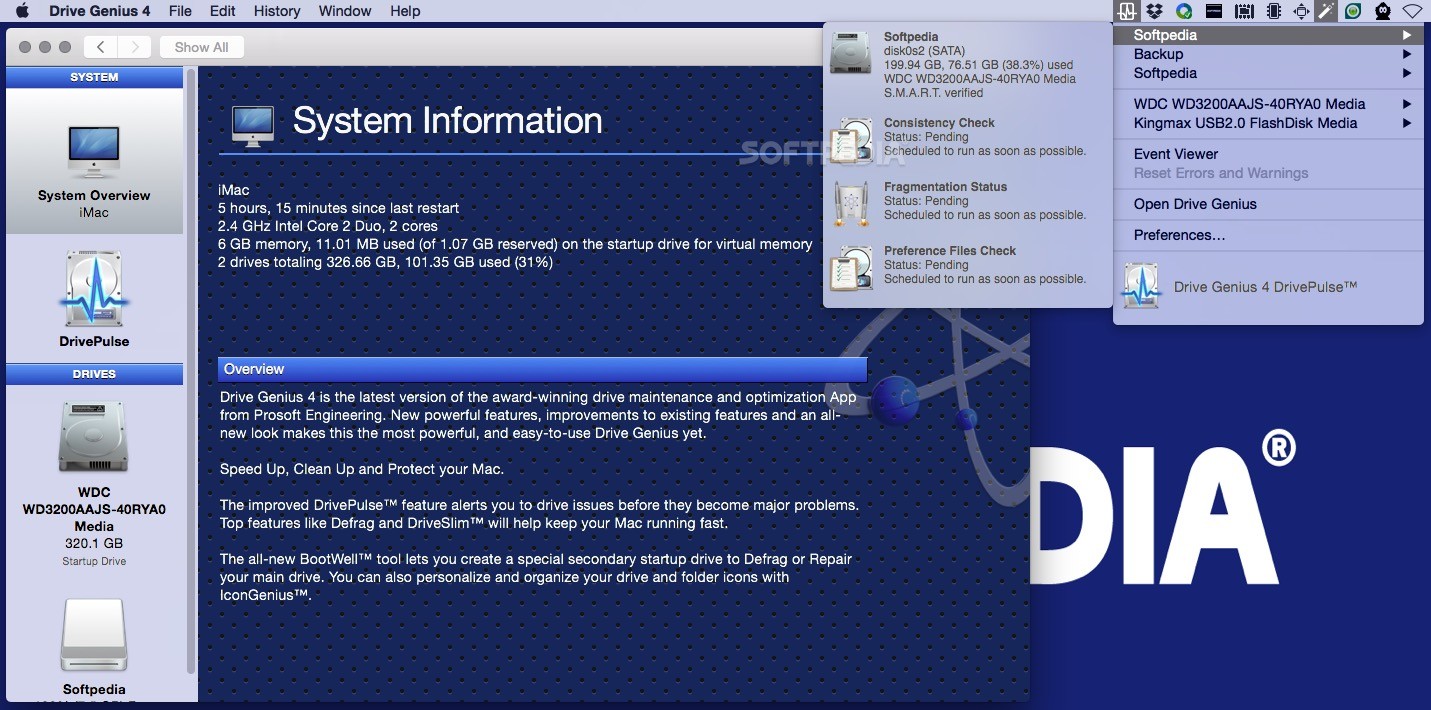
Your Mac’s performance can be slowed down by different factors: large duplicate documents and other types of unnecessary files, disk failures, data fragmentation, and so on. Drive Genius is a user friendly Mac app designed to help you clean your disk and optimize the usage of the available space.
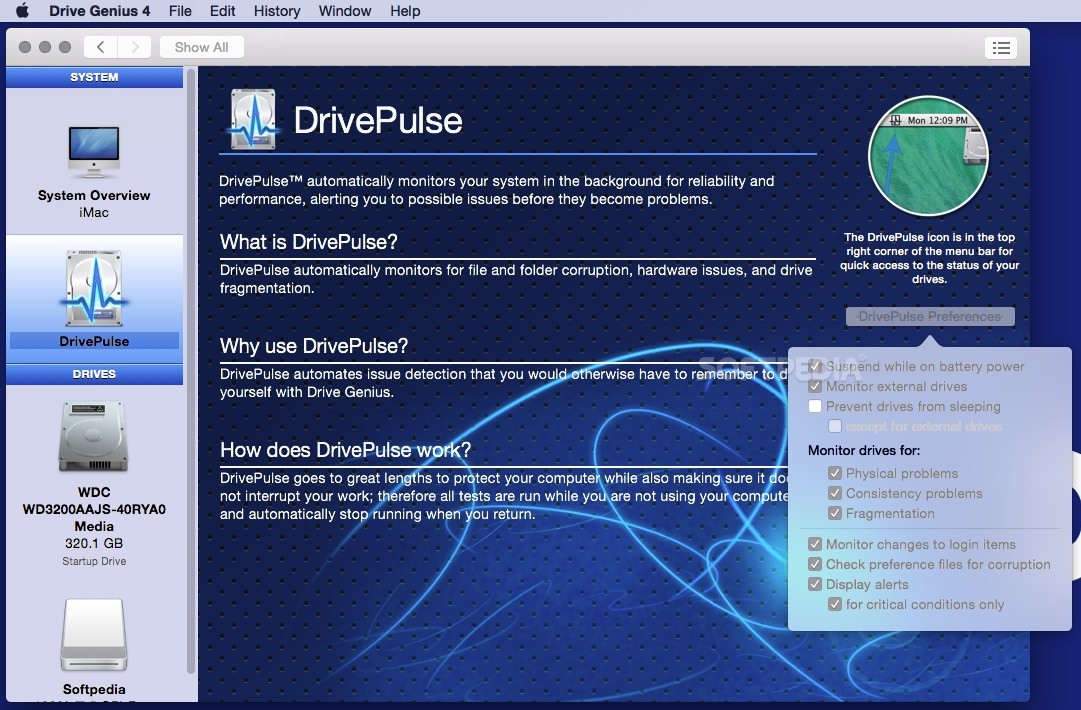
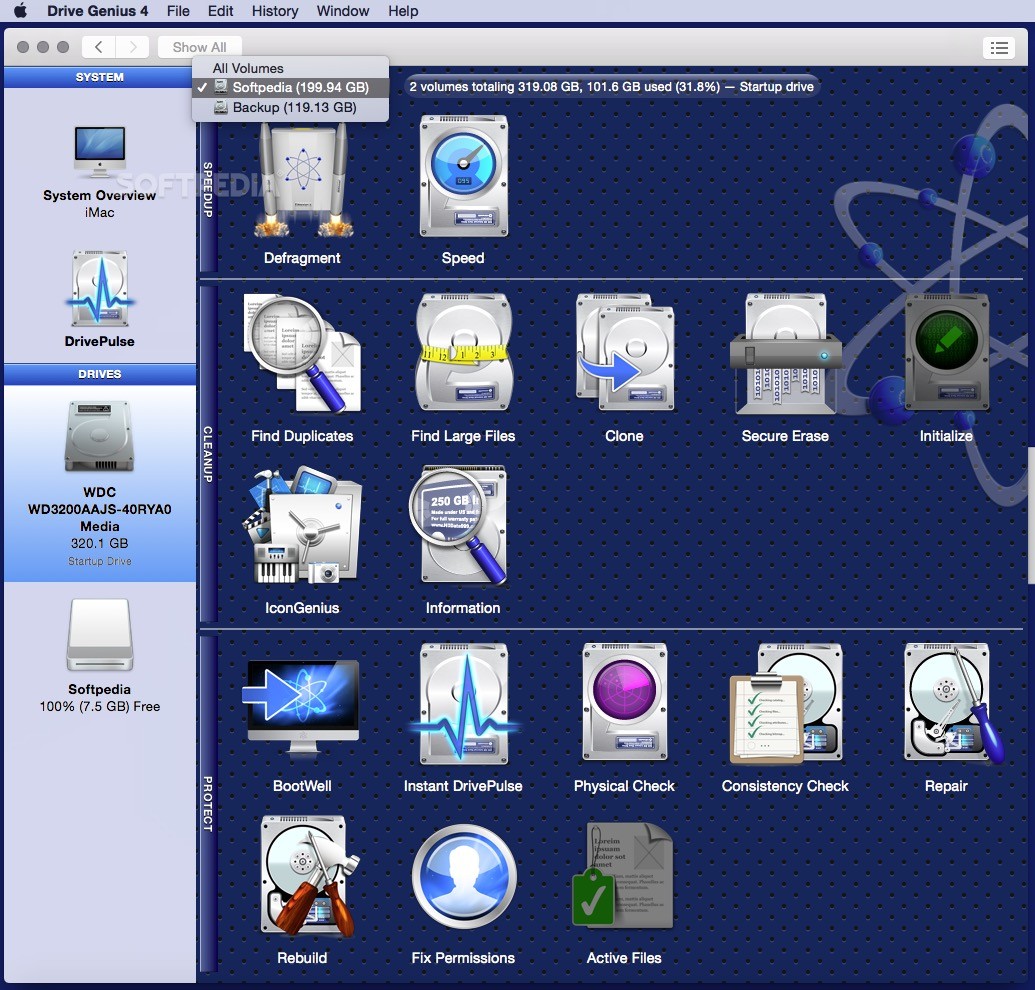
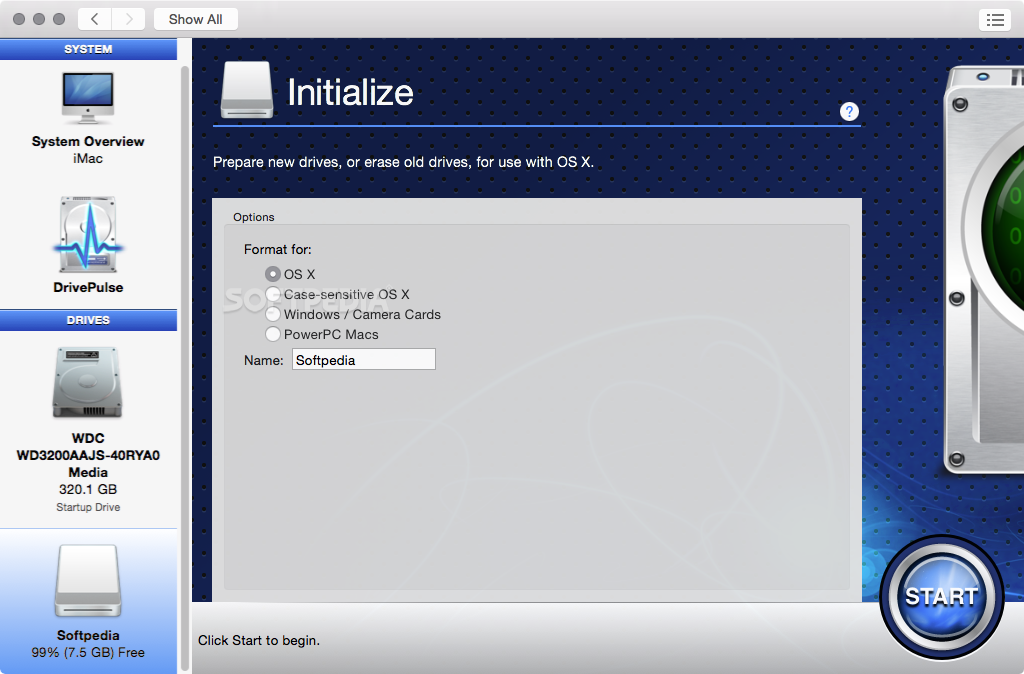
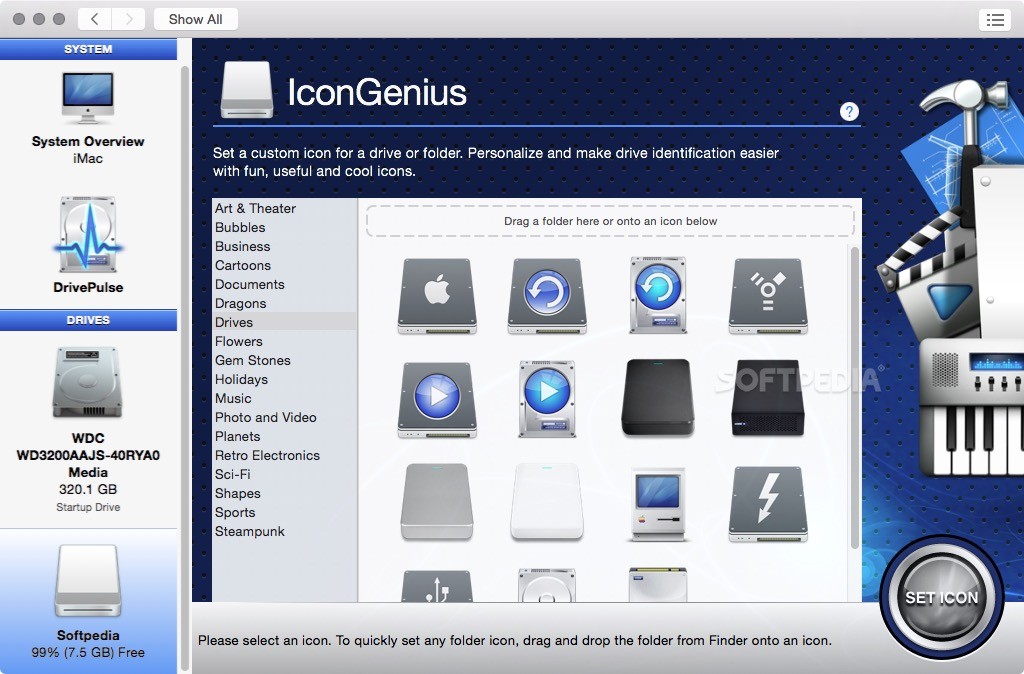
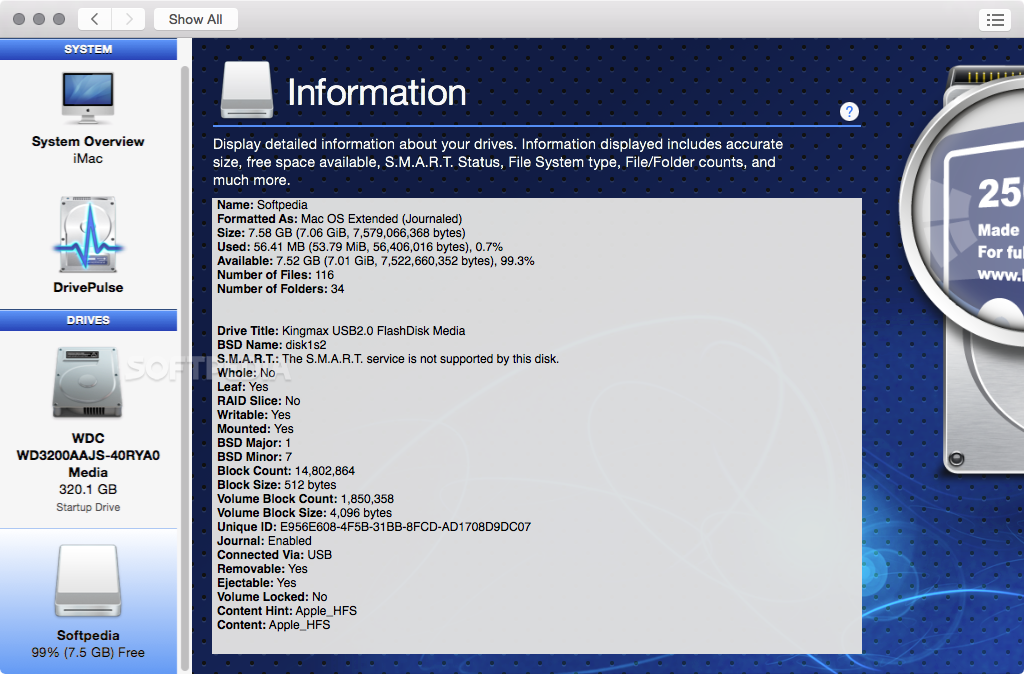
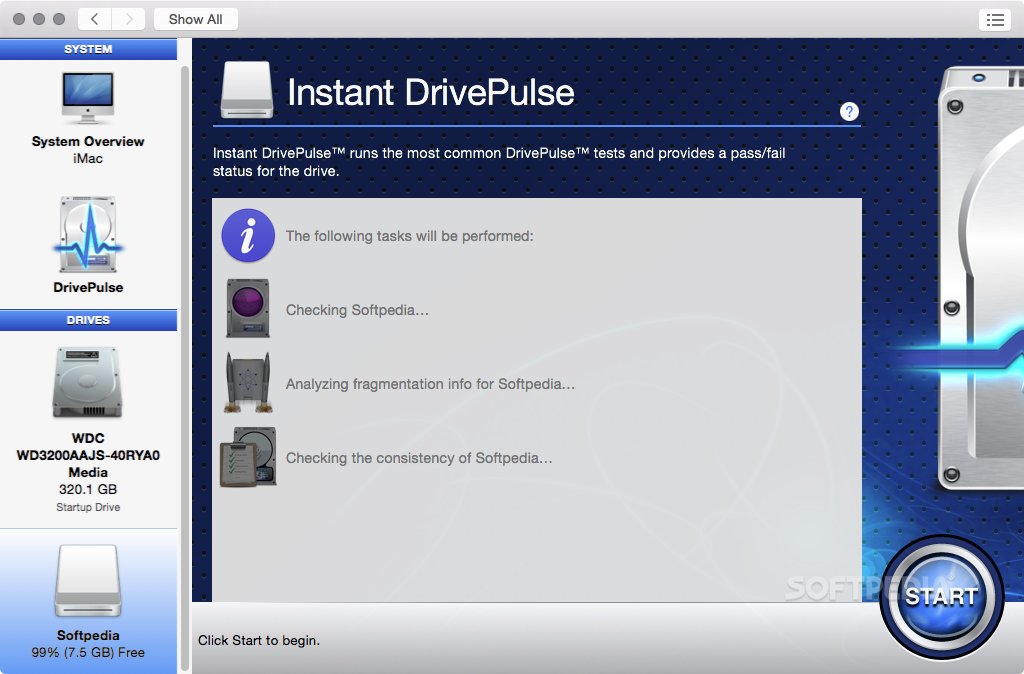
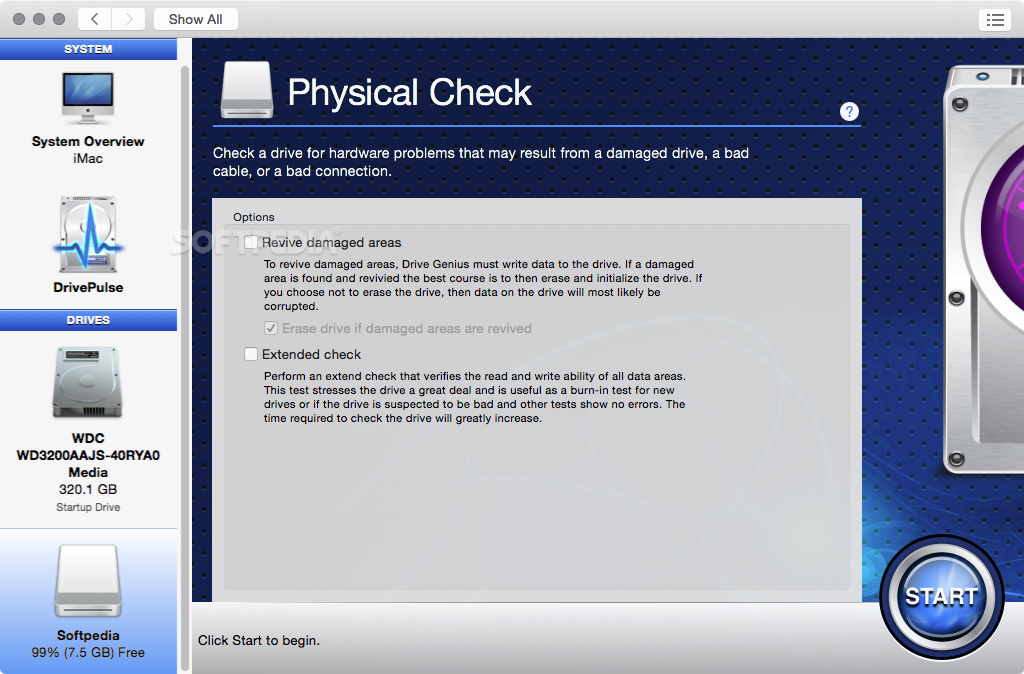
Within the Drive Genius main window you have the option to access any of the cleaning and optimization tools provided by the app: Defrag, DriveSlim, Repair, Scan to deallocate bad blocks, DrivePulse, Integrity Check, Initialize, Repartition, Duplicate, Shred, Benchtest, or Sector Edit. The Information panel provides extensive details about each connected drive.
Most of the included tools have self explanatory names, but you can also read a small description and usage pointers in the bottom area of the Drive Genius main window. For easy navigation, Drive Genius also provides a small drop down list containing all the available tools.
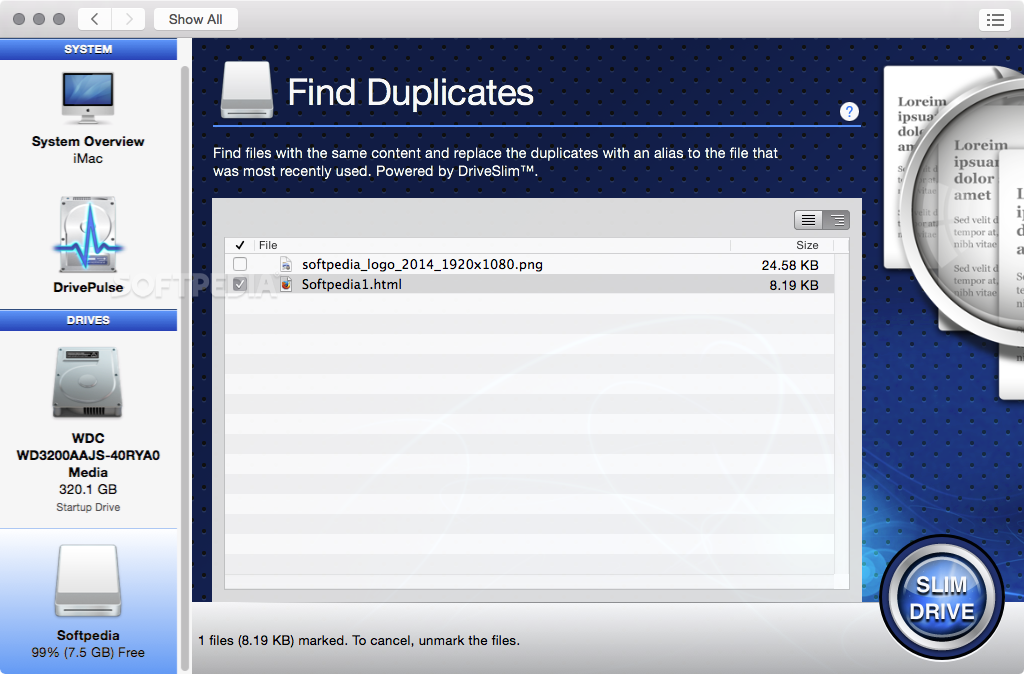
You can use Drive Genius to quickly detect large unused files, duplicates, unnecessary localizations, or universal binaries: this way you can start to quickly regain disk space by deleting files that you do not need.
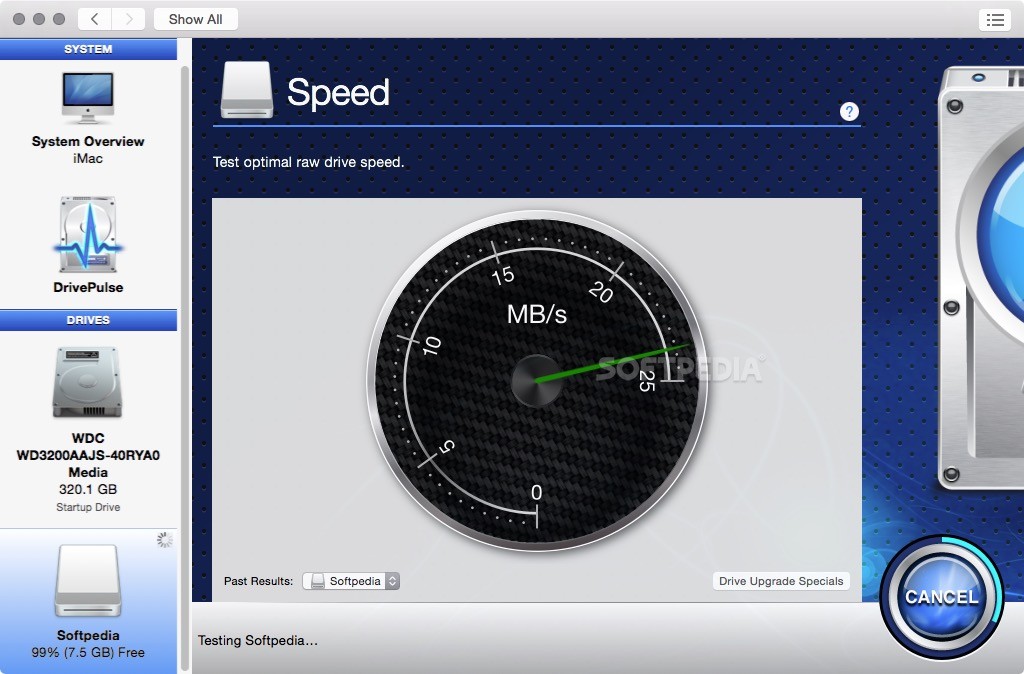
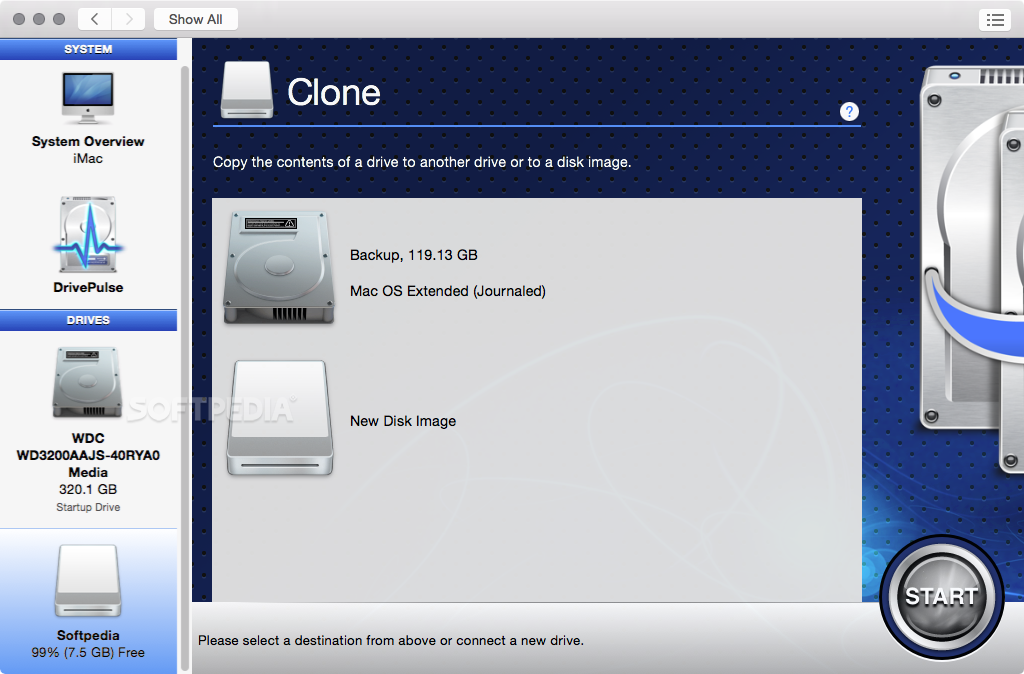
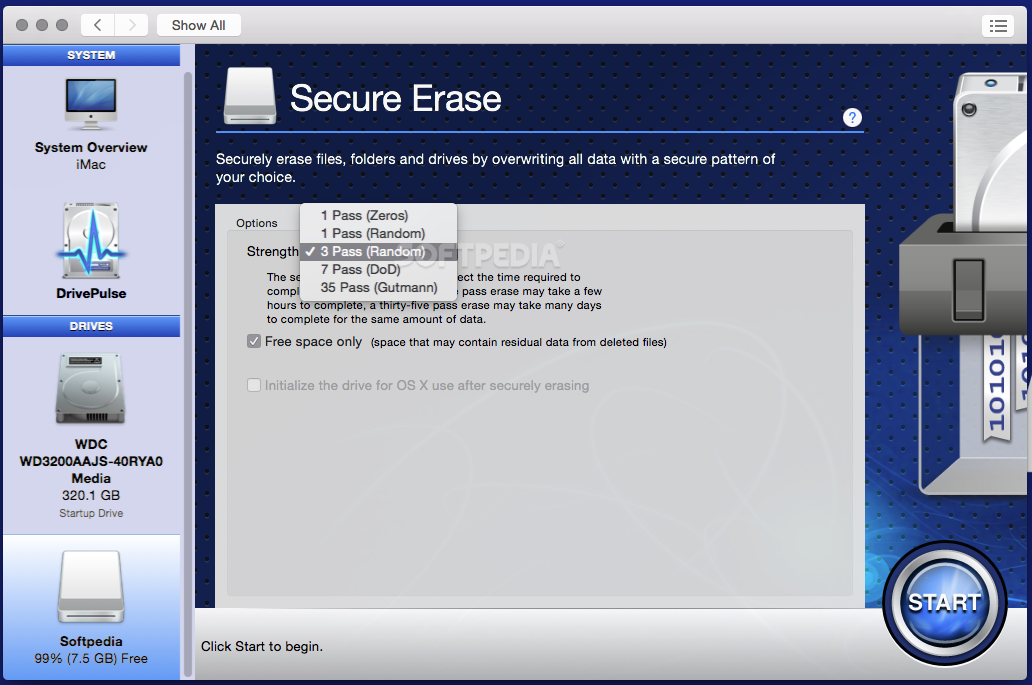
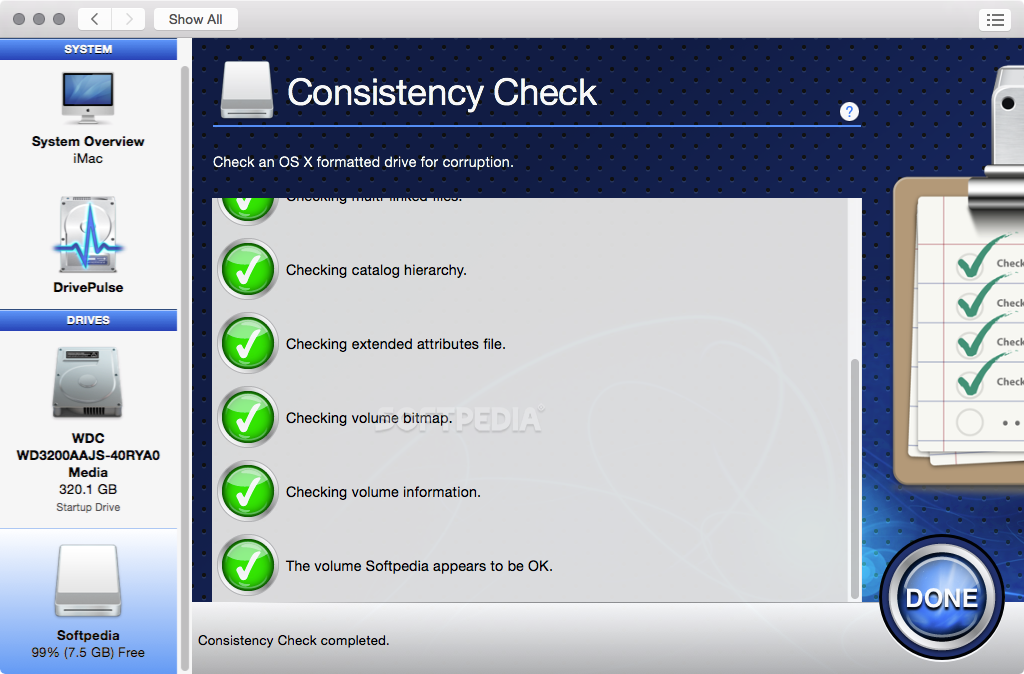
Moreover, you can verify preferences, repair disk permissions, check the drive integrity, erase the drive content and create a HFS+ volume, expand / shrink / create / delete / hide / reveal partitions, duplicate volumes, secure delete data, perform benchmark tests, and so on.
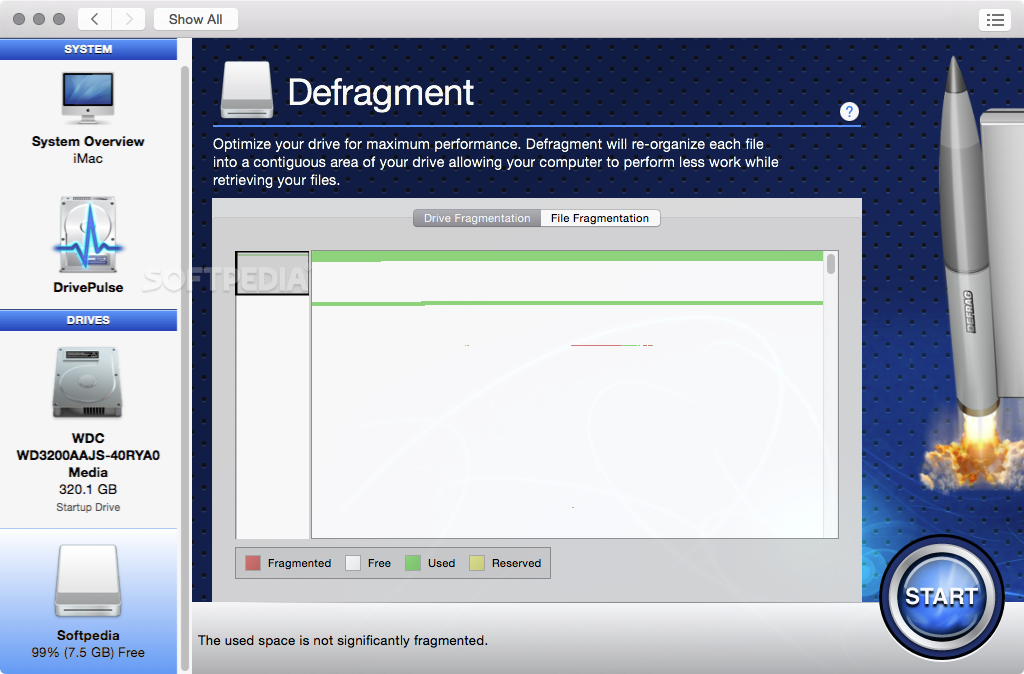
Since Drive Genius comes with a defragmentation tool, the application is able to rearrange your large files on the disk in order to reduce the time to find a certain data and improve your Mac’s overall performance.
In a nutshell, if you are looking for a comprehensive collection of tools that can help you keep your Mac clean and working at its full capability, Drive Genius certainly deserves your attention.
Download Hubs
Drive Genius is part of these download collections: Make Partition, HDD Manager, Partition Manager, Create Partition
What's new in Drive Genius 6.2.3:
- Support macOS Ventura (BootWell with Cryptexes; update Drive Pulse and Activation UI).
- Allow APFS Clone / Create BootWell to a drive smaller than source drive physical size.
- Fix Free / Used Space monitoring for APFS Volumes and Volume Groups on macOS Monterey.
- Support Protective MBR with GPT entries in Windows format (Master Boot Record parser).
Drive Genius 6.2.3
add to watchlist add to download basket send us an update REPORT- runs on:
- macOS 10.12 or later (Intel only)
- file size:
- 52 MB
- filename:
- DriveGenius_6.2.3.dmg

- main category:
- System Utilities
- developer:
- visit homepage
Context Menu Manager
7-Zip
4k Video Downloader

Microsoft Teams
ShareX
Windows Sandbox Launcher
IrfanView
Zoom Client
calibre
Bitdefender Antivirus Free

- Zoom Client
- calibre
- Bitdefender Antivirus Free
- Context Menu Manager
- 7-Zip
- 4k Video Downloader
- Microsoft Teams
- ShareX
- Windows Sandbox Launcher
- IrfanView