Softpedia
 

MAC CATEGORIES:


GLOBAL PAGES >>
NEWS ARCHIVE >>
SOFTPEDIA REVIEWS >>
MEET THE EDITORS >>
WEEK'S BEST
  • EarthDesk 5.8.5
  • GraphicConverter 8...
  • MacPorts 2.1.1
  • CCleaner 1.03.131
  • Quicksilver ß68 Bu...
  • TextWrangler 4.0.1...
  • Google Chrome 21.0...
  • Winclone 3.3
  • ScreenFlow 3.0.6
  • Apple Security Upd...
  • Home > Mac > Multimedia
     Report malware

    Sofortbild 1.2.5 Build 73

    Download button

    Downloads: 2,392  Tell us about an update
    User Rating:
    Rated by:
    Very Good (4.5/5)
    4 user(s)
    Developer:

    License / Price:

    Size / OS:

    Binary Format:

    Last Updated:

    Category:
    Stefan Hafeneger | More programs
    Freeware / FREE
    14.4 MB / Mac OS X 10.6.6 or later
    Intel only Intel only
    May 5th, 2012, 08:21 UTC [view history]
    Home / Multimedia

     Read user reviews (1)  Refer to a friend  Subscribe

    Sofortbild description

    Tethered shooting helper tool for the Mac

    Sofortbild is a native Mac OS X utility designed to help photographers with tethered shooting tasks.

    The Sofortbild software allows you to control any Nikon D4, D3s, D3x, D3, D2xs*, D2hs*, D2x*, D2h*, D1x*, D1h*, D1*, D800, D800E, D700, D300s, D300, D200, D100*, D7000, D90, D80, D70s*, D70*, D60, D50*, D40x, D40, D5100 and D5000 (* legacy support) remotely from your Mac via USB or through wired or wireless LAN using a wireless transmitter (on selected models).

    Sofortbild is able to transfer all the captured images instantly to your hard disk in order to review in full resolution and quality and further image processing.

    Here are some key features of "Sofortbild":

    Image Transfer:
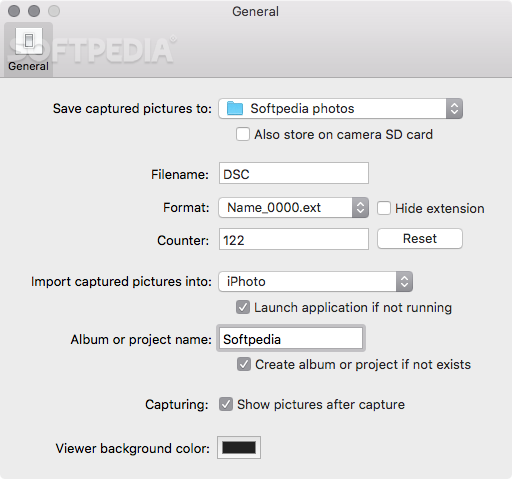
    · All captured pictures are saved in the current userʻs "Pictures" folder using the file name format „DSC_0000.ext“ per default.
    · To change the location of the save folder or the file name format, open the preferences window. Choose „Other...“ from the pop up button menu and select a different folder on your hard disk. You can change the file name and choose a different file name format from the pop up button menu. If you like you can optionally hide the file extension of all transfered image files.
    · Sofortbild will increment the image file index after each captured picture. If you set your camera to „RAW+JPEG“, the application will give both image files the same index. When you are shooting a bracketing series, Sofortbild will give all image files the same index as well, but will also add an incrementing suffix in the format „_BKT00“ to all image files.
    · If you want to reset the index, click on „Reset Counter“. The index for the following captured images then will start from one again.

    Image Viewer:
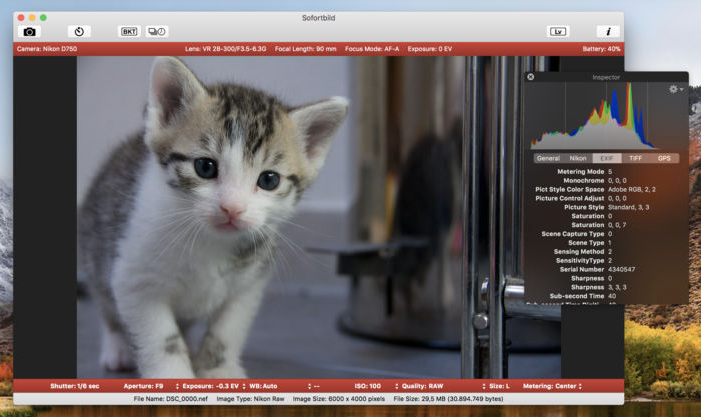
    · Sofortbild shows per default the most recent captured image in the image viewer and resizes it to fit into the image viewer.
    · General image details like file name and size and image type and dimensions are shown in the bottom bar of Sofortbildʻs main window.
    · You can zoom the image in and out, move it around, show it in its actual size and resize it again to fit into the image viewer. Select „Automatically Resize“ from the „View“ menu to keep the image always resized to fit into the image viewer, when you change the size of the applicationʻs main window.
    · You can switch the image viewer to fullscreen mode by selecting „Enter Fullscreen“ from the „View“ menu or pressing and holding the command key and pressing „F“. You can use this feature to allow a client to review the captured pictures on a large display while shooting. To exit fullscreen mode, press and hold the command key and press „F“ again.
    · Alternatively you can press the „Esc“ key.
    · Sofortbildʻs image viewer has a dark gray background color per default. To change the background color, open the preferences window and select a different color. Sofortbild immediately redraws the background and saves the new background color to use it when you launch the application again.
    · If you decide to automatically import all captured pictures into a photo library application, you might want to disable Sofortbildʻs image viewer and use Aperture, iPhoto or Lightroom instead. Otherwise all images are loaded and displayed twice and the corresponding image histograms are calculated at the same time which could slow down your Mac.
    · To turn off the image viewer, open the preferences window and deselect „Show pictures after capture“.

    Image Inspector:
    · Click on the „Inspector“ button in the main windowʻs toolbar or select „Show Inspector“ from the „View“ menu to open the Inspector. Click on the „Inspector“ button again or select „Hide Inspector“ from the „View“ menu to hide the Inspector again. Alternatively you can press and hold the command and shift key and press „I“.
    · The Inspector consists of three parts: A histogram, meta data and map view.
    · The histogram view shows the color and brightness distribution of the captured picture.
    · You can choose between six different modes. In „Luminance“ mode the histogram shows the distribution of the brightness based on a black and white representation of the image.
    · In „RGB“ mode, the brightness value of each pixel is calculated of the sum of the three color values of the pixel. In „Red Channel“, „Green Channel“ or „Blue Channel“ mode, the histogram just shows the distribution of the red, green or blue channel respectively. In „Colored“ mode (the default mode) the three histograms of the red, green and blue channels are displayed together.
    · The meta data view shows all meta data that is contained in the image file. The meta data is grouped into five different categories. You can choose between „General“, „Nikon“, „EXIF“, „TIFF“ and „GPS“ by pressing one of the five buttons of the segmented control.
    · The map view will show the location where the captured picture has been taken if the image contains valid GPS meta data. There has to be an active internet connection to load the map data. You can use the map controls to move the map around, change the map type and zoom in or out.

    Camera Status:
    · When a supported camera is connected and switched on, the status bar at the top of Sofortbildʻs main window shows the camera model, the name of the current lens, the current focal length, the current focus mode, the current exposure value and the cameraʻs battery status.
    · All values are not editable from the application but instantly updated when the value is changed on the camera.

    Camera Settings:
    · All major camera settings are shown in the settings bar at the bottom of Sofortbildʻs main window. Depending on the cameraʻs currently selected program mode, you can change all or just a few settings either on the camera body or from the application.
    · An editable setting is shown by two small arrows beside the current value. When you click on the setting, a pop up menu lists all available values. When you select a new value, the changed setting is instantly updated on the camera. In return, when you change a value on the camera body, the new value is instantly updated in the application.
    · If you set the cameraʻs program mode to something different than „Manual“, a few settings will not be editable. In this case the two small arrows are not shown and when you click on the setting nothing happens. The value itself might still be updated if the camera did change the value.

    Remote Capture:
    · Click on the „Capture“ toolbar button in Sofortbildʻs main window or select „Capture Picture“ from the „Device“ menu to take an picture. Alternatively you can press the „Play“ button on your Apple Remote or press and hold the command key and press „R“.
    · Regardless of the cameraʻs release mode Sofortbild will take exactly one picture. To shoot in continuous low or high speed mode, use the release button on the camera body.
    · Depending on the current focus mode, your camera might auto focus before taking the picture. In this case the camera might not be able to focus the subject and Sofortbild will show a warning. In manual focus the camera will always capture a picture.

    Self Timer:
    · When you want to take a picture after a certain amount of time to get yourself into the picture for example but donʻt want to use the cameraʻs self timer you can use Sofortbildʻs self timer feature.
    · Click on the „Self Timer“ toolbar button in Sofortbildʻs main window or select „Self Timer...“ from the „Device“ menu. Alternatively you can press and hold the command key and press „T“. The application will reveal a sheet where you can set the self timer delay and the number of pictures you would like to take.
    · Click on the „OK“ button or press the „Return“ key and Sofortbild will reveal a progress sheet with a progress bar. The application will also play an acoustic feedback. After the delay the camera will take one or more pictures according to the previously selected number of pictures.
    · If you like to abort the self timer, click on the „Stop“ button or press the „Esc“ key.
    · Sofortbild then will stop the self timer and dismiss the progress sheet.

    Bracketing:
    · If you want to take a series of pictures with different exposure values you can either use the cameraʻs (usually limited) bracketing function or use Sofortbildʻs advanced bracketing feature.
    · Click on the „Bracketing“ toolbar button in Sofortbildʻs main window or select „Bracketing...“ from the „Device“ menu. Alternatively you can press and hold the command key and press „B“. The application will reveal a sheet where you can set a minimum and maximum shutter speed. Optionally you can set a shutter speed step width and a delay to give a flash some time to recharge.
    · Click on the „OK“ button or press the „Return“ key and Sofortbild will reveal a progress sheet with a progress bar. The camera then will take several pictures with the previously defined shutter speeds.
    · If you like to abort the bracketing, click on the „Stop“ button or press the „Esc“ key.
    · Sofortbild will then stop the bracketing and dismiss the progress sheet.
    · Before starting the bracketing you should set your cameraʻs focus mode and program
    · mode to „Manual“. Otherwise Sofortbild might not be able to do the bracketing as intended.

    Interval Shooting:
    · If you want to take a series of pictures using a constant interval you can use Sofortbildʻs interval shooting feature.
    · Click on the „Interval“ toolbar button in Sofortbildʻs main window or select „Interval Shooting...“ from the „Device“ menu. Alternatively you can press and hold the command key and press „I“. The application will reveal a sheet where you can set the interval by selecting hours, minutes and seconds.
    · Click on the „OK“ button or press the „Return“ key and Sofortbild will reveal a progress sheet. The camera then will take a picture each time the previously defined interval has passed.
    · To abort the interval shooting, click on the „Stop“ button or press the „Esc“ key. Sofortbild will then stop the interval shooting and dismiss the progress sheet.
    · Before starting the interval shooting you might want to set your cameraʻs focus mode and/ or program mode to „Manual“. Otherwise you might get pictures with different focus point and camera settings.

    Auto Import:
    · If you are using a photo library application like Aperture, iPhoto or Lightroom, you might want to import all captured pictured into your photo library. Sofortbild can automatically import all captured images (except high dynamic range images due to missing file support of those applications) into Aperture and iPhoto.
    · Open the preferences window and select either „Aperture“ or „iPhoto“ from the pop up button menu. Per default Sofortbild launches the selected application if it is not already running. Deselect „Launch application if not running“ to change this behaviour.
    · Sofortbild will automatically create a new project (Aperture) or album (iPhoto) named „Sofortbild“ and import all captured images into that project or album. You can change the
    · name of the album and decide whether you want Sofortbild to create the project or album if it does not exist yet by selecting or deselecting „Create album or project if not exists“.
    · Using auto import, Sofortbild will not save the captured pictures in the save folder, so you donʻt have to delete the images yourself afterwards. If Sofortbild is not able to import the pictures (because the photo library application is not running), the application will move the image files to the save folder, so you can still import them manually.
    · Lightroom is unfortunately not scriptable and thus Sofortbild not able to do the import itself.
    · However you can use Lightroomʻs watch folder feature to import all captured pictures automatically. Create a new folder and let Sofortbild save all captured pictures to that location. Then configure Lightroom to import all images in that folder into its library.

    High Dynamic Range Imaging:
    · When you want to take a series of pictures with different exposure values you usually want to create a HDR image. Instead of using external applications, you can use Sofortbildʻs high dynamic range imaging feature.
    · Open the preferences window and select „Create high dynamic range image“. When you use the bracketing feature, Sofortbild will automatically create a HDR image and save it in the default location using the same index as the captured pictures.
    · In some cases the application is not able to calculate a high dynamic range image from the captured pictures. In those cases Sofortbild will show a warning. You can then try to create a HDR image with an external application.
    · The application will automatically align the captured pictures before calculating the high dynamic range image. If you are sure that the different images will overlap exactly you can disable auto alignment by deselecting „Automatically align images“. This will speed up the calculation and might enable Sofortbild to calculate HDR images if it wouldnʻt be able to do so with auto alignment turned on.
    · If you just want to keep the high dynamic range image you can select „Delete original files“. Sofortbild then will delete the captured files used for the HDR image calculation. The
    · pictures wonʻt even show up in the save folder, so they wonʻt be imported into your photo library application.
    · Sofortbild per default creates OpenEXR files (the most widely used high dynamic range image format) but you can change the file format to LogLuv TIFF, Float TIFF, JPEG-HDR or Radiance if you like.
    · Please note that Sofortbildʻs current image viewer does not perform any tone mapping for high dynamic range images, so the result might look weird. When you open the image files in an external HDR viewer you will usually get a more natural look.

    Requirements:

    · Nikon D4, D3s, D3x, D3, D2xs, D2hs, D2x, D2h, D1x, D1h, D1, D800, D800E, D700, D300s, D300, D200, D100, D7000, D90, D80, D70s, D70, D60, D50, D40x, D40, D5100 or D5000 camera

    What's New in This Release: [ read full changelog ]

    · Added D4, D800 and D800E support

     Softpedia guarantees that Sofortbild 1.2.5 Build 73 is 100% CLEAN, which means it does not contain any form of malware, including spyware, viruses, trojans and backdoors. [read more >]


    TAGS:

    control camera | preview image | process image | control | camera | preview


    HTML code for linking to this page:


    Go to top

    WindowsGamesDriversMacLinuxScriptsMobileHandheldNews

    SUBMIT PROGRAM   |   ADVERTISE   |   GET HELP   |   SEND US FEEDBACK   |   RSS FEEDS   |   UPDATE YOUR SOFTWARE   |   ROMANIAN FORUM