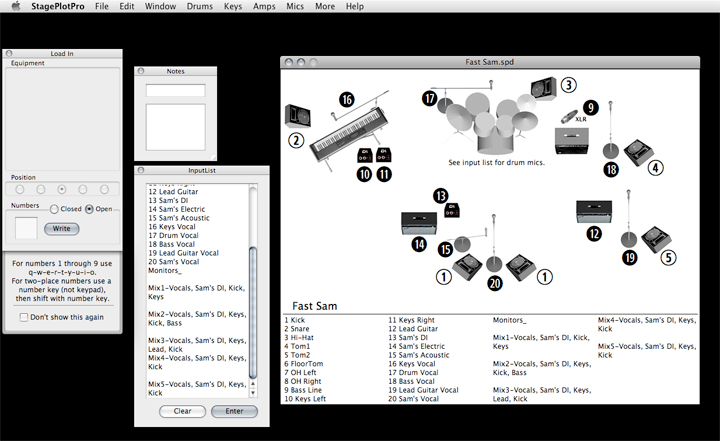
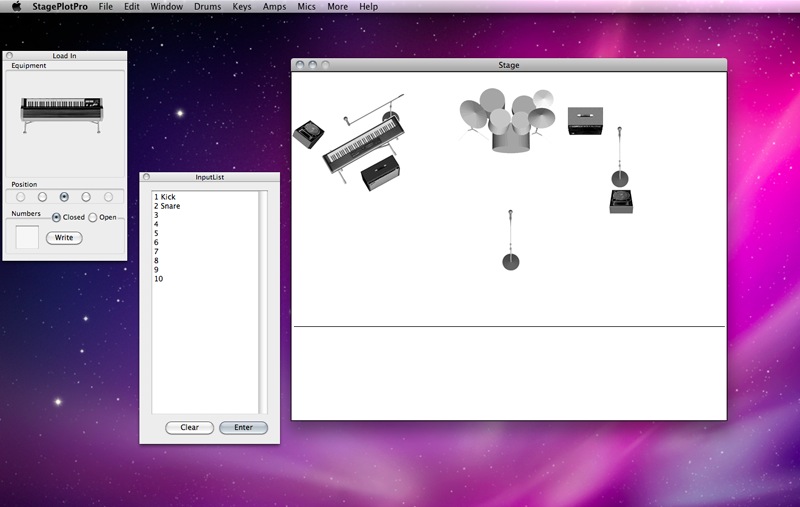
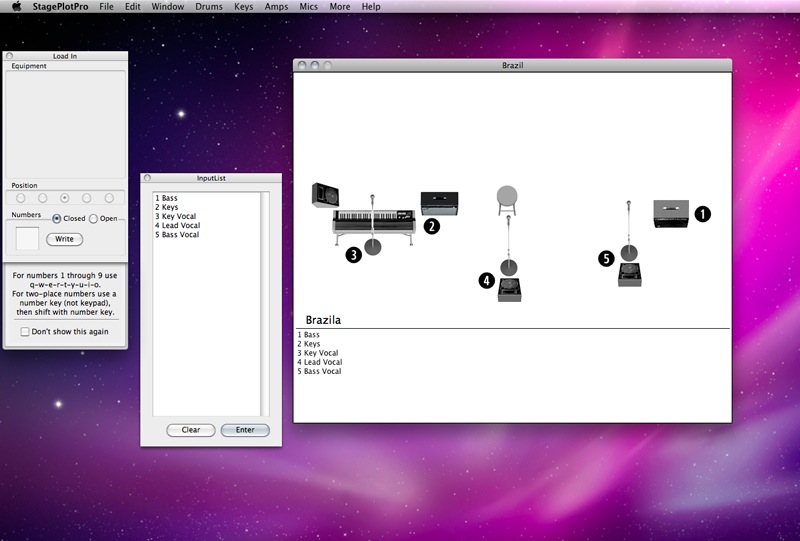
You may find working with StagePlotPro to be relatively instinctive. StagePlotPro allows you to choose an “Instrument” from the menubar, it will appear in the “Load-In” window, and you will drag it to the desired position on the “Stage”. “Instruments” include everything from drums to microphones, amplifiers, monitors, DI boxes, electric drops, etc..
Load-In Window: If needed, use the radio buttons on the “Load-In” window to angle an instrument left or right before dragging it onto the stage. Once on-stage, you have the possibility to modify the instrument position by dragging it.
Notes Window: Use the “Notes” window (select Window>Notes) to add text to the stage. Type your text into the editfield at the top of the "Notes" window and press “Return” or “Enter”.
Your text will appear in the field below. You may resize the window at this point to arrange your text in a single line, or lines of text in a column. Simply use the re-size button on the bottom right corner of the window. Then, drag the text onto the stage.
Working with Instruments: When you have one instrument overlapping another, you may bring the lower one to the front by clicking or shift-clicking on it. (This seems to vary from PowerMacs to Intel Macs.)
To remove an instrument from the stage, select it by clicking or shift-clicking on it and press your “Delete” key.
To select several instruments at once, hold the shift key while drawing a selection box around a group of instruments. To move a selected instrument, drag or use an arrow key for a 1 pixel move or shift-arrow to move 5 pixels. To de-select an instrument, click on an empty place on the stage.
Stage Plot Title: The horizontal line on the lower half the page separates the stage from the input list, the input list being below the line. Click with your mouse just above the line to add the name of the band, or whatever title you choose.
Once the editfield is selected, type your text and hit “Enter” or “Return”. Do not simply click on the stage to de-select the editfield or your title will not be saved, though you will still see it. This rectangle (the space occupied by the editfield on the stage) should be avoided when positioning instruments on the stage, as the instrument’s graphic may be clipped.
Input List: To write your input list, select Window>InputList, and select the InputList window’s editfield by clicking in it.
The input list section of the stagewindow has room for four columns of text, ten lines each. You may type into the editfield of the InputList window, and the text will wrap automatically. In this editfield, the “Return” key will put your cursor to the following line.
To write the text from this window into the input list at the bottom of the stagewindow, press the “Enter” button on the InputList window or the “Enter” key on your keyboard. You may change or clear the text in the InputList window and write those changes to the stagewindow using the same method.
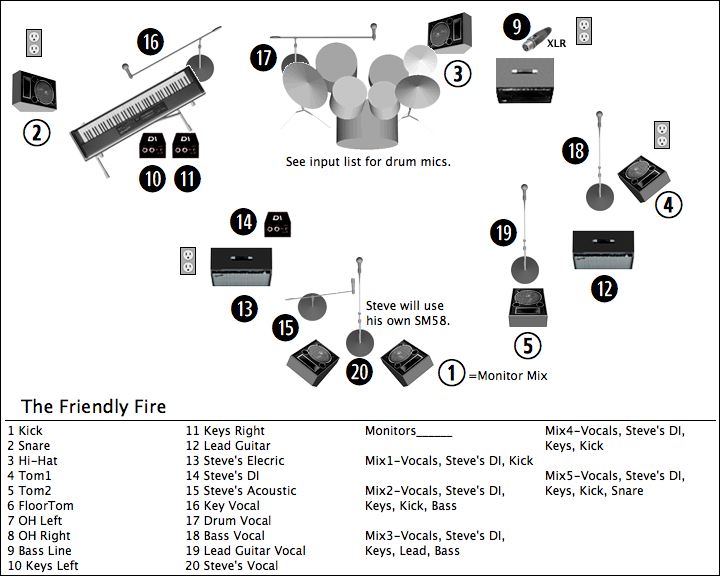
Numbers: You will probably want to use numbers on the stage to specify where you want each input to appear on your input list / mixing board. (Hint: Write your input list first, and refer to it as you drag numbers to the stage.)
To create a number for the stage, click in the editfield in the lower left corner of the Load-In window, and type according to the help window that will appear below.
Press the “Write” button on the window to transfer the number to the field on the right, and drag the number onto the stage. “Closed” numbers appear as white numbers against black and are reccommended for inputs. “Open” numbers are black numbers in a white circle and may be placed next to monitor wedges to identify each monitor mix.
Monitor mixes may be described following your input list. If there isn’t enough space left in the input list area after your input list is complete, you may use the “Notes” window to add text to the stage. Once on the stage, notes and numbers may be treated as “instruments”.
Printing/Exporting: Once you have completed your stage plot, you may print it or export it as a JPEG file to e-mail. To print, use File>Print or command-p. To create a JPEG, choose File>Export, save your StagePlotPro file as a JPEG, and drag or use the Mail menu to attach it to your e-mail.
I strongly recommend that you keep things as simple as possible. The stage can easily be filled up with enough elements to be visually confusing. For instance, as long as your input list contains a list of the drums you wish to mic, there may be no reason to add those same numbers to the stage, surrounding the drumset.
You may want to add a mic to the stage to show that an instrument amplifier should be mic’d, but a number itself may be enough. Of course, if you're a solo performer or a trio, or have lots of space on the stage, it's nice to have the graphic.
Limitations:
· 14 days trial period.
What's New in This Release: [ read full changelog ]
· Added: Export to PDF. Greatly simplified numbers. Ability to expand Stage and Input List. Ability to draw & fill shapes on stage. Risers. Trusses. Curtains - backdrop & wings, adjustable. Many new instruments, including percussion, strings, horns, etc. Ability to resize instruments. Ability to save groups of instruments to reuse. Mix numbers on monitors. Align instruments by edges. Lock instruments by distance to sides or bottom of stage. Lock instruments horizontally or vertically relative to size of stage. Undo/Redo positioning of instruments. Ability to select or bring instruments to front via menu. Also added French Horn.