
Displays Mac OS X usage tips in your Dashboard.. #Read usage tip #Mac OS X tip #Read article #Read #Tip #Article
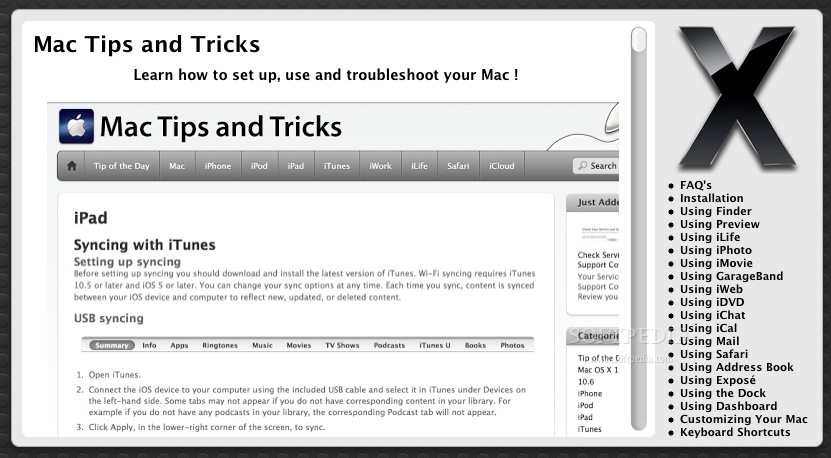
OS X Basics is a minimalist widget that allows you to read Mac OS X usage tips from the commodity of your Dashboard.
The OS X Basics widget will install via its built mechanism and all you have to do is double click the .wdgt file resulted after unarchiving the downloaded package. Once installed, your Dashboard will become active and will display the new widget.
To learn more about dealing with the Mac OS X Dashboard you can easily access the Apple support page HERE.
System requirements
- Dashboard
OS X Basics 1.0
add to watchlist add to download basket send us an update REPORT- runs on:
- Mac OS X 10.0 or later (PPC & Intel)
- file size:
- 852 KB
- filename:
- OS X Basics.zip
1 screenshot:
- main category:
- Dashboard Widgets
- developer:
- visit homepage
calibre
Effortlessly keep your e-book library thoroughly organized with the help of the numerous features offered by this efficient and capable manager
7-Zip
An intuitive application with a very good compression ratio that can help you not only create and extract archives, but also test them for errors
Bitdefender Antivirus Free
Feather-light and free antivirus solution from renowned developer that keeps the PC protected at all times from malware without requiring user configuration

Windows Sandbox Launcher
Set up the Windows Sandbox parameters to your specific requirements, with this dedicated launcher that features advanced parametrization
4k Video Downloader
Export your favorite YouTube videos and playlists with this intuitive, lightweight program, built to facilitate downloading clips from the popular website

paint.net
Packed with an array of options and an intuitive interface, this application enables you to create professional-looking photographs

Microsoft Teams
Effortlessly chat, collaborate on projects, and transfer files within a business-like environment by employing this Microsoft-vetted application
Zoom Client
The official desktop client for Zoom, the popular video conferencing and collaboration tool used by millions of people worldwide
ShareX
Capture your screen, create GIFs, and record videos through this versatile solution that includes various other amenities: an OCR scanner, image uploader, URL shortener, and much more
IrfanView
With support for a long list of plugins, this minimalistic utility helps you view images, as well as edit and convert them using a built-in batch mode
% discount
Zoom Client
- Zoom Client
- ShareX
- IrfanView
- calibre
- 7-Zip
- Bitdefender Antivirus Free
- Windows Sandbox Launcher
- 4k Video Downloader
- paint.net
- Microsoft Teams
essentials
User Comments
This enables Disqus, Inc. to process some of your data. Disqus privacy policy